


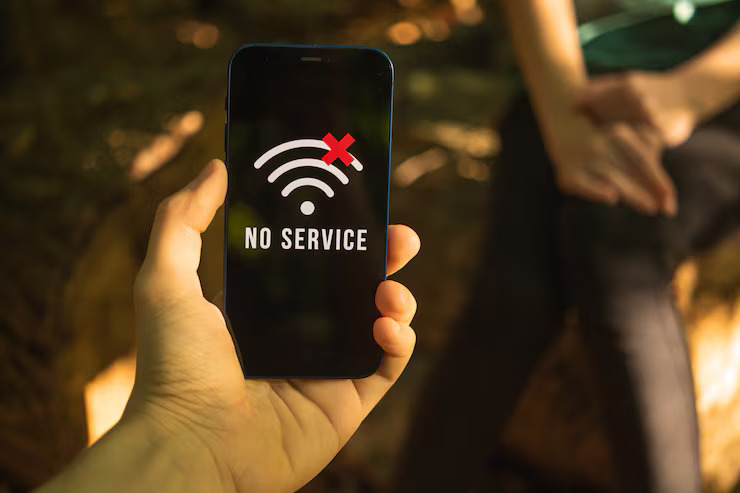
Few internet problems are as frustrating as watching your Wi-Fi network suddenly disappear while the router appears to be operating normally. Although the power lights remain on, the wireless network may no longer appear on connected devices, interrupting work, streaming, gaming, and online communication.
In many cases, the problem is not a hardware failure but rather an issue related to wireless signals, software, network settings, or interference.
Signal Interference Is the Most Common Cause
Wi-Fi relies on radio waves that can be weakened by physical obstacles such as concrete walls, multiple floors, metal structures, and large furniture.
Interference from microwave ovens, cordless phones, Bluetooth devices, and neighboring Wi-Fi networks can also reduce signal quality or temporarily prevent devices from detecting the network.
Placing the router in a central, elevated location away from electrical appliances often improves wireless coverage significantly.
Router Issues Can Interrupt Wireless Broadcasting
Even when the router appears to be functioning normally, temporary software glitches, overheating, or unstable power conditions may stop it from broadcasting the wireless signal.
Restarting the router remains one of the simplest and most effective troubleshooting methods because it refreshes system memory and restores network services.
If the issue continues to occur regularly, the router itself may require replacement.
Firmware and Driver Updates Matter
Modern routers rely on firmware that controls all wireless functions.
Outdated or corrupted firmware can introduce connectivity issues, including disappearing Wi-Fi networks.
Manufacturers regularly release updates that improve performance, enhance security, and fix known bugs.
Users should also keep their computer and mobile device Wi-Fi drivers updated to ensure compatibility with the latest wireless standards.
Security and Configuration Problems
Improper router settings may unintentionally hide the wireless network.
Disabling SSID broadcasting, selecting incompatible security settings, or changing wireless channels can prevent devices from finding the network.
In some cases, unauthorized access to the router may result in configuration changes that make the network invisible.
Using strong administrator passwords and enabling WPA2 or WPA3 encryption significantly improves network security.
Practical Steps to Restore Your Wi-Fi
If your wireless network suddenly disappears, experts recommend the following troubleshooting steps:
- Restart both the router and your device.
- Confirm Wi-Fi is enabled and Airplane Mode is disabled.
- Verify that you’re searching for the correct network.
- Update wireless adapter drivers.
- Change the router’s Wi-Fi channel to reduce interference.
- Reset the router to factory settings if the issue persists, then reconfigure the network securely.
Wi-Fi analyzer applications can also help identify crowded wireless channels, signal strength, and interference sources.
When Should You Replace Your Router?
If connection problems continue despite repeated troubleshooting, the router may simply be outdated.
Older devices supporting legacy Wi-Fi standards often struggle to meet the demands of modern households filled with smart TVs, gaming consoles, smartphones, security cameras, and IoT devices.
Upgrading to a Wi-Fi 6 or Wi-Fi 6E router can significantly improve speed, stability, coverage, and overall network performance.